Table Of Content
- 🎉 Exclusive Deals & Special Savings
- Why Using NordVPN on Public Wi-Fi Matters
- How to Use NordVPN on Public Wi-Fi: Step-by-Step
- Step 1: Join the Public Wi-Fi Network
- Step 2: Complete the Network Sign-In
- Step 3: Connect With NordVPN
- Step 4: Verify Your Connection
- How NordVPN Fits This Public Wi-Fi Guide
- Pros and Cons
- 💥 Limited-Time Offer & Huge Discounts
- Frequently Asked Questions
- Should I connect to public Wi-Fi before turning on NordVPN?
- Does NordVPN make public Wi-Fi completely safe?
- Should I leave NordVPN connected in cafés and airports?
- What should I do if NordVPN will not connect?
- Can I use NordVPN on my phone while traveling?
- Related Resources
- Conclusion
Public Wi-Fi is convenient when you are traveling, working from a café, waiting at an airport, or staying in a hotel. However, connecting to an unfamiliar network can raise privacy and security concerns, especially when you need to check email, access personal accounts, or browse while away from home. Learning how to use NordVPN on public Wi-Fi can help you add a layer of protection to your internet connection.
The process is straightforward, but the order matters. Many public networks require you to accept terms or complete a sign-in page before internet access becomes available. Connecting a VPN before completing this step can sometimes prevent the login page from loading. With a little preparation, you can join the network, finish its sign-in process, connect NordVPN, and check that the VPN is active before browsing.
🎉 Exclusive Deals & Special Savings
Why Using NordVPN on Public Wi-Fi Matters
Public Wi-Fi security varies. On unfamiliar networks, limited protection and unknown network management can increase your exposure to potential security threats.
A VPN encrypts your internet traffic, helping protect it from inspection on local networks. NordVPN also masks your public IP address by replacing it with the VPN server’s IP address.

A VPN is not a guarantee of complete anonymity or protection from every online threat. It does not automatically make phishing links, fraudulent websites, unsafe downloads, or compromised accounts harmless. Continue using HTTPS websites, strong passwords, and multifactor authentication wherever available.
How to Use NordVPN on Public Wi-Fi: Step-by-Step
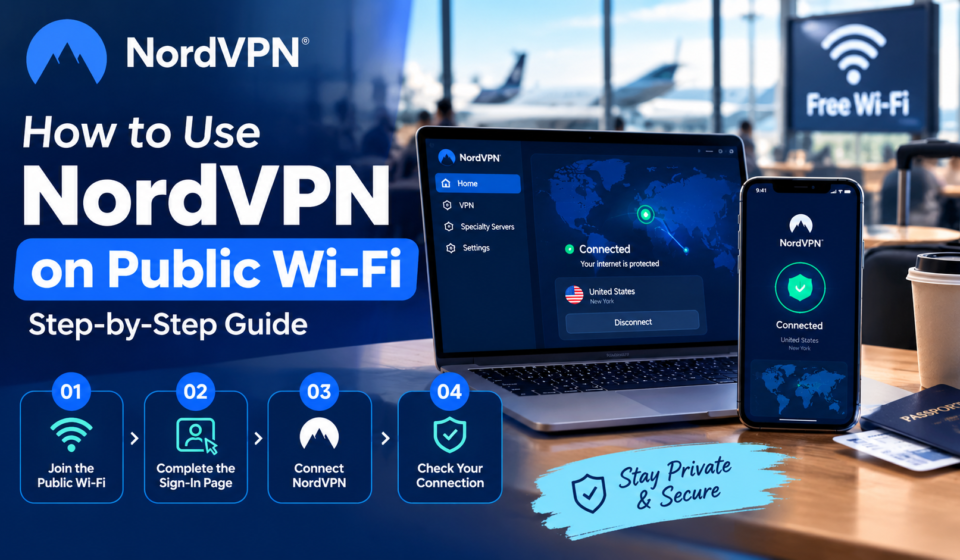
Step 1: Join the Public Wi-Fi Network
Open your device’s Wi-Fi settings and find the network name provided by the café, hotel, airport, or other venue. If possible, confirm the exact network name with staff before connecting, as similarly named networks can be misleading.
Select the appropriate network and follow the prompts. Some networks connect immediately, while others display a captive portal—a webpage where you must accept terms, enter a room number, or complete another sign-in step.
Avoid entering sensitive information into unexpected pop-ups. If a network requests payment or personal details, confirm that the request is legitimate before proceeding.
Step 2: Complete the Network Sign-In
If a hotel or café login page appears, complete the sign-in process and accept the network terms. Confirm that a webpage loads before reconnecting NordVPN.
If the login page does not appear, temporarily disconnect NordVPN and try opening a plain HTTP webpage to trigger the portal. You may also need to forget the Wi-Fi network and reconnect.
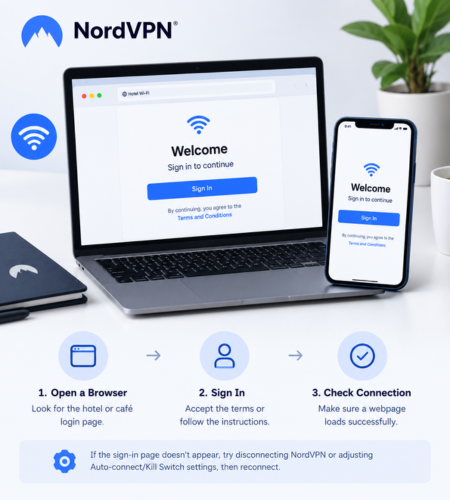
NordVPN’s official captive portal troubleshooting guide explains that Auto-connect or Kill Switch settings can sometimes prevent the sign-in page from loading. If necessary, temporarily adjust the relevant settings according to the guide, complete sign-in, and restore your preferred protections once the VPN reconnects.
Step 3: Connect With NordVPN
Open the NordVPN app on your Windows computer, Mac, iPhone, Android phone, or supported device. Sign in to your account if needed, then choose the option to connect to a recommended server, often labelled “Secure my connection.”
Alternatively, select a suitable server location if you have a specific reason to use one. Wait until the app confirms that the VPN connection is active.
For everyday browsing, a recommended nearby server is a reasonable starting point. Server availability and app settings can vary by device, so consult NordVPN’s official instructions if your screen looks different.
Step 4: Verify Your Connection
Before using public Wi-Fi for sensitive browsing, check that the NordVPN app shows an active connection. If you want an additional check, compare your public IP address before and after connecting. While the VPN is active, the displayed IP should generally correspond to the VPN server rather than your ordinary connection.
You can also use a reputable VPN leak-testing service to check whether your IP or DNS information is exposed. Remember that a connection indicator alone does not prove that every security setting is configured exactly as you intend.
Keep the app updated, and reconnect if the VPN disconnects unexpectedly.
How NordVPN Fits This Public Wi-Fi Guide
NordVPN supports major desktop and mobile platforms, offering server selection, connection settings, Auto-connect, and Kill Switch features, depending on the device and app version.
NordVPN’s Auto-connect feature can automatically activate the VPN on new or unfamiliar Wi-Fi networks, helping reduce the risk of forgetting to connect manually.

A Kill Switch can help prevent internet traffic from continuing outside the VPN tunnel if the connection drops. Its behaviour depends on the platform and settings, so review the options available on your device.
You can explore the official NordVPN website for current plans, supported devices, and feature details before deciding whether the service meets your needs.
Pros and Cons
Pros
- Encrypts covered internet traffic between your device and the VPN server.
- Offers apps for common desktop and mobile platforms.
- Auto-connect can simplify protection when joining unfamiliar networks.
- Kill Switch options may help prevent unprotected traffic if the VPN disconnects.
Cons
- A VPN cannot protect against every scam, phishing attempt, or unsafe download.
- Public Wi-Fi sign-in pages may require troubleshooting before the VPN connects.
- Connection speed and reliability can vary with the network, server, and device.
- A subscription may be required, so check current pricing and renewal terms.
💥 Limited-Time Offer & Huge Discounts
Frequently Asked Questions
Should I connect to public Wi-Fi before turning on NordVPN?
Usually, yes. Join the network and complete any required captive-portal sign-in first, then connect NordVPN. If Auto-connect interferes with the portal, follow the official troubleshooting instructions.
Does NordVPN make public Wi-Fi completely safe?
No. A VPN adds encryption for covered traffic, but it cannot eliminate all risks. Use HTTPS, keep your device updated, avoid suspicious links, and protect your accounts with multifactor authentication.
Should I leave NordVPN connected in cafés and airports?
Keeping the VPN connected while using unfamiliar Wi-Fi is a sensible privacy practice. Auto-connect may help, provided it is configured correctly for your device.
What should I do if NordVPN will not connect?
Check that the Wi-Fi sign-in is complete, confirm your internet connection works, restart the app, and try another available server. Review NordVPN’s support guidance if the issue continues.
Can I use NordVPN on my phone while traveling?
NordVPN offers apps for supported iOS and Android devices. Install the official app, sign in, connect to a server, and check the connection status before browsing.
Related Resources
For a broader overview of features, pricing, and privacy considerations, read the NordVPN review covering price, safety, and whether NordVPN is worth it in 2026.
Conclusion
Using NordVPN on public Wi-Fi is easiest when you follow the right sequence: join the verified network, complete its sign-in page, connect the VPN, and confirm that the connection is active. Review Auto-connect and Kill Switch settings before traveling so you know how your device will behave on unfamiliar networks.
A VPN can add an important layer of privacy, but it works best alongside careful browsing habits and up-to-date devices. Visit the official NordVPN website to explore supported devices and current features before choosing a plan.