Table Of Content
- 🎉 Exclusive Deals & Special Savings
- Why Is NordVPN Running Slow?
- 1. Try Another VPN Server
- 2. Check Your VPN Protocol
- 3. Update the NordVPN App
- 4. Test Your Internet Speed With and Without the VPN
- 5. Check Your Wi-Fi and Network Settings
- How NordVPN Fits Into Your Troubleshooting
- Pros and Cons of Troubleshooting First
- 💥 Limited-Time Offer & Huge Discounts
- Frequently Asked Questions
- Why is NordVPN slow all of a sudden?
- Does NordVPN reduce internet speed?
- Which NordVPN protocol should I use for speed?
- Will changing VPN servers improve speed?
- What should I do if NordVPN is still slow?
- Related Resources
- Conclusion
A slow internet connection can make everyday activities frustrating, especially when websites take longer to load, videos buffer repeatedly, or online games experience lag. If NordVPN is running slow, the problem may involve your VPN server, connection settings, internet service, or device rather than the VPN alone.
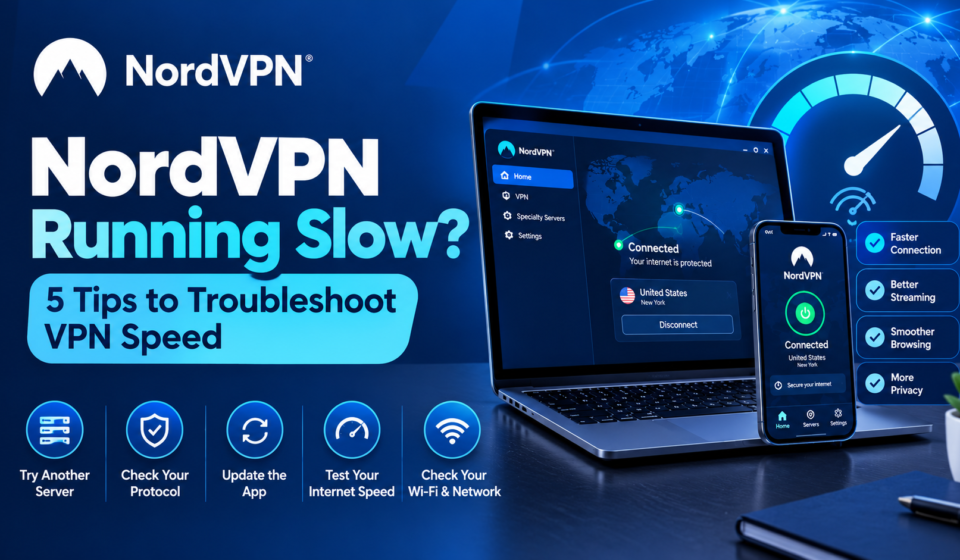
Before abandoning your VPN, try a few straightforward troubleshooting steps. Changing server locations, reviewing your VPN protocol, updating the application, and testing your regular internet connection can help you identify what is affecting performance.
NordVPN provides connection options designed for different needs, but the best configuration depends on your device, network, and location. This guide explains five practical ways to troubleshoot slow VPN speeds and helps you decide when to explore NordVPN’s features or official support resources.
🎉 Exclusive Deals & Special Savings
Why Is NordVPN Running Slow?
A VPN encrypts your internet traffic and routes it through a VPN server, which can affect speed and latency depending on server distance, congestion, and protocol.
Common signs of a slow VPN include:
- Slow website loading.
- Video buffering and interrupted downloads.
- Higher gaming ping.
- Reduced download and upload speeds.
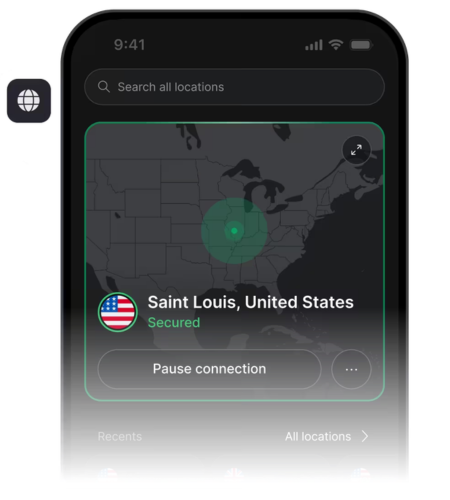
The goal is to identify the cause instead of assuming that every slowdown comes from the VPN.
1. Try Another VPN Server
The server you choose can influence connection performance. A distant server may increase latency, while a busy server can sometimes become a bottleneck.
Open the NordVPN app and disconnect from your current server. Select another available location, preferably one geographically closer to you if you do not need a specific country.
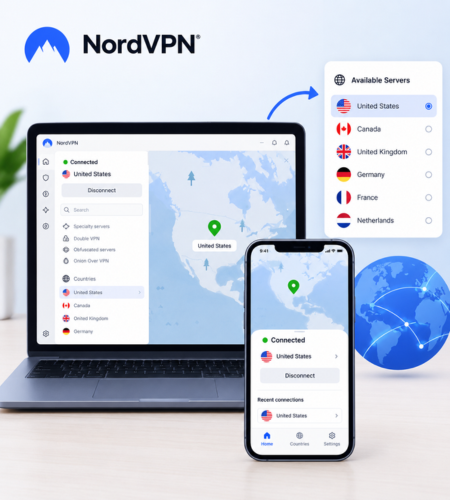
After connecting, test the same website or online activity again. If performance improves, the original server or route may have contributed to the slowdown.
Helpful tip: Test a few suitable nearby locations rather than switching randomly between distant countries. If you need a particular region for privacy or access purposes, choose an appropriate alternative that meets that requirement.
2. Check Your VPN Protocol
A VPN protocol determines how your device establishes and maintains its encrypted connection. Different protocols can offer different combinations of speed, stability, compatibility, and security.
NordVPN offers NordLynx, OpenVPN, and other connection options depending on the device and application version. NordLynx is generally designed for fast performance, making it worth testing when speed is your priority.
Open your NordVPN settings and find the connection or protocol section. If available, try NordLynx or the recommended automatic setting, then compare your connection.
Do not assume that one protocol will perform identically on every network. If a setting causes connection problems, return to a compatible recommended option. Keep security in mind rather than choosing a configuration based on speed alone.
3. Update the NordVPN App
An outdated VPN application may contain bugs or compatibility issues that affect connectivity. Updating the software is a simple troubleshooting step before attempting more complicated changes.
Visit the official NordVPN website or use your device’s trusted app store to check for the latest available version. Install any appropriate update and restart the application.
If the problem continues, restart your device. This can help resolve temporary software or network issues.
Avoid downloading VPN installers from unfamiliar websites. Using official distribution channels reduces the risk of installing modified or unsafe software.
4. Test Your Internet Speed With and Without the VPN
Sometimes, the underlying internet connection is the real problem. Weak Wi-Fi, network congestion, background downloads, or an issue with your internet service provider can affect performance even when your VPN is working normally.
Run a speed test while connected to NordVPN. Record your download speed, upload speed, and latency. Disconnect the VPN temporarily and repeat the test using the same device, network, and testing service.
Compare the results under similar conditions.
- Both tests are slow: Investigate your Wi-Fi, router, internet plan, or service provider.
- The VPN test is noticeably slower: Try another server and protocol.
- Performance changes throughout the day: Network congestion may be contributing.
A single test cannot establish the exact cause, so repeat the comparison if results fluctuate.
5. Check Your Wi-Fi and Network Settings
Your local network can influence VPN performance. A weak wireless signal, interference, or several devices using bandwidth simultaneously may cause slow browsing and unstable connections.
Try moving closer to your router or switching to a different Wi-Fi network. If possible, test a wired Ethernet connection. Pause unnecessary large downloads and cloud backups while troubleshooting.
You can also restart your router if your ordinary internet connection appears unstable. If the issue affects multiple devices, contact your internet service provider for further help.
Avoid changing advanced network settings unnecessarily. If NordVPN remains slow after these checks, consult its official troubleshooting instructions for your operating system.
How NordVPN Fits Into Your Troubleshooting
NordVPN provides VPN applications and connection options that users can adjust to suit different devices and networks. However, no VPN can guarantee the same speed for every user or internet connection.
NordVPN recommends trying nearby servers, testing different protocols, updating the app, and comparing network speeds to improve connection performance.

For a broader overview of the service, features, pricing considerations, and safety, see the related NordVPN review linked below.
Pros and Cons of Troubleshooting First
Pros
- May resolve common connection issues without replacing your VPN.
- Helps distinguish VPN-related slowdowns from ordinary network problems.
- Allows you to compare server and protocol performance.
Cons
- Results depend on your device, location, and internet provider.
- Some advanced settings may require platform-specific instructions.
- Troubleshooting cannot resolve every ISP, hardware, or server-side issue.
💥 Limited-Time Offer & Huge Discounts
Frequently Asked Questions
Why is NordVPN slow all of a sudden?
Possible causes include server congestion, changes in your Wi-Fi connection, software issues, or increased network traffic. Try another server and compare speeds with and without the VPN.
Does NordVPN reduce internet speed?
A VPN can affect speed because traffic travels through an additional server and undergoes encryption. The size of the difference depends on your connection, server location, and protocol.
Which NordVPN protocol should I use for speed?
NordLynx is a sensible option to test when speed is important. Actual results vary, so compare it with the recommended automatic setting or other supported options.
Will changing VPN servers improve speed?
It may. A closer or less congested server can provide better performance, although the outcome depends on network conditions and routing.
What should I do if NordVPN is still slow?
Update the app, restart your device, test another network, and follow the official troubleshooting guide for your operating system. Contact NordVPN support if the problem persists.
Related Resources
For a more detailed evaluation of the service, read the NordVPN review, pricing, safety, and 2026 buying guide. It provides additional context for readers considering NordVPN or reviewing their current VPN choice.
Conclusion
If NordVPN is running slow, start with the simplest checks: switch servers, review your VPN protocol, update the app, compare internet speeds, and test your Wi-Fi or network connection. Change one setting at a time so you can identify which adjustment makes a difference.
If performance remains poor, use NordVPN’s official troubleshooting resources or contact its support team. Visit the official NordVPN website to explore its current features and supported connection options before deciding whether it suits your needs.