Table Of Content
- 🎉 Exclusive Deals & Special Savings
- Why NordVPN Settings Matter
- 1. Auto-Connect: Review When Your VPN Starts
- 2. Kill Switch: Understand Connection Protection
- 3. VPN Protocol: Review Your Connection Method
- 4. Split Tunneling: Check Which Apps Use the VPN
- 5. Protection Features: Review Your Additional Security Tools
- How NordVPN Fits Into Your Privacy Routine
- Pros and Cons of Reviewing These Settings
- 💥 Limited-Time Offer & Huge Discounts
- Frequently Asked Questions
- 1. Which NordVPN settings should I check first?
- 2. Should I always keep NordVPN auto-connect enabled?
- 3. Does a Kill Switch improve VPN privacy?
- 4. Is split tunneling safe to use?
- 5. Do all NordVPN settings work on every device?
- Conclusion
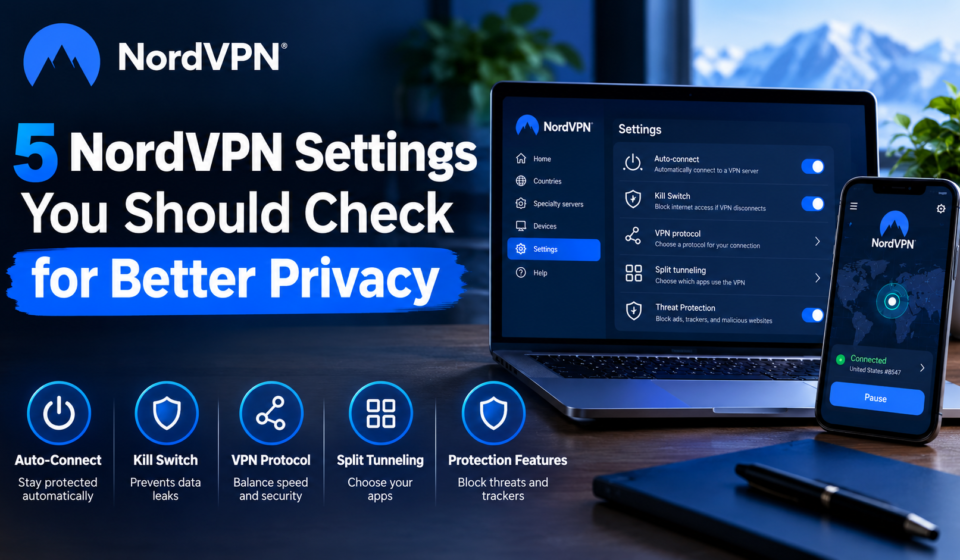
Using a VPN is a useful step toward improving online privacy, but installing an app is only the beginning. Your connection preferences, security controls, and app permissions can all affect how you use a VPN in everyday situations. Reviewing your NordVPN settings can help you understand which protections are enabled and whether your configuration matches your needs.
Whether you regularly use public Wi-Fi, work remotely, or browse from home, five settings deserve particular attention: auto-connect, Kill Switch, VPN protocol, split tunneling, and additional protection features. Each serves a different purpose, and the right configuration depends on your device and browsing habits. Understanding these options can help you make more informed decisions when using NordVPN without assuming that every setting needs to be enabled on every device.
🎉 Exclusive Deals & Special Savings
Why NordVPN Settings Matter
A VPN encrypts your internet traffic, but it cannot guarantee complete anonymity or prevent every online threat. Keep your device updated, secure your accounts, and practice safe browsing.
Reviewing VPN settings helps identify issues, prevent interruptions, and check app connections. Options vary by device and app version.
1. Auto-Connect: Review When Your VPN Starts
Auto-connect automatically establishes a VPN connection under selected conditions. Without it, you may need to remember to connect manually whenever you start browsing or join a new network.
This setting is particularly useful when connecting to hotel, airport, café, or other public Wi-Fi networks. Depending on your device, you may be able to configure auto-connect for all networks or specific connection types, such as Wi-Fi or mobile data.
What to check:
- Whether auto-connect is enabled.
- Which networks trigger an automatic connection.
- Whether a preferred server location is selected.
- Whether trusted-network exceptions are appropriate for your needs.
Choose settings that match your routine. Automatic connections can reduce the chance of forgetting to activate your VPN, but you should still verify that the connection is active when privacy matters.
2. Kill Switch: Understand Connection Protection
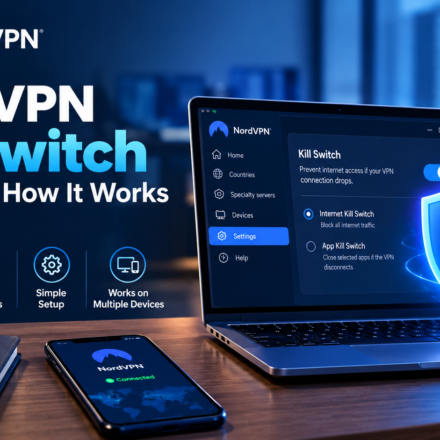
A Kill Switch blocks internet traffic if the VPN disconnects unexpectedly, helping prevent your real IP address from being exposed and reducing unprotected traffic.
NordVPN supports major desktop and mobile platforms, offering server selection, connection settings, Auto-connect, and Kill Switch features, depending on the device and app version.
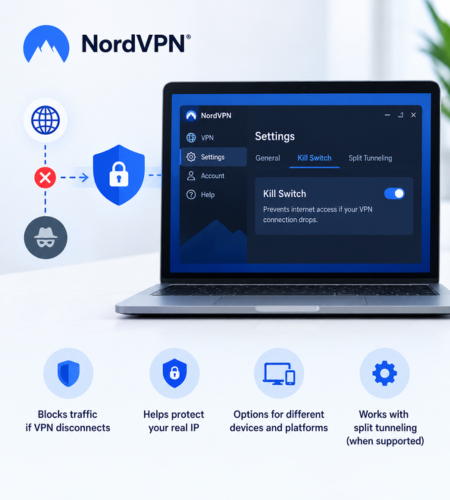
Before relying on this feature, understand what happens when your VPN disconnects. A Kill Switch may interrupt internet access until the secure connection returns, which is an intentional trade-off for users who want stricter protection.
Also consider how it interacts with split tunneling. These features can conflict on some configurations, potentially blocking traffic from applications you have excluded from the VPN. Test your setup before depending on it for important work.
3. VPN Protocol: Review Your Connection Method
A VPN protocol determines how your device establishes and maintains its VPN connection. Different protocols can offer different combinations of speed, security, and connection stability.
NordVPN supports protocols such as NordLynx and OpenVPN, while availability of other options depends on the app and platform. NordLynx is based on WireGuard technology, whereas OpenVPN is an established, open-source VPN protocol.
How to choose:
- Consider NordLynx if you want to try NordVPN’s modern protocol option.
- Consider OpenVPN if you prefer its configuration flexibility or need it for a particular network.
- Follow the app’s recommendations if you are unsure which option suits your device.
There is no single setting that is ideal for every situation. If your connection becomes unstable, review the available protocols and test an alternative rather than assuming your VPN is automatically malfunctioning.
4. Split Tunneling: Check Which Apps Use the VPN
Split tunneling allows selected applications to bypass the VPN while other traffic continues through it. This can be useful when a particular application needs your regular internet connection or behaves differently when a VPN is active.
For example, you might exclude a trusted application that requires access to your local network. However, excluded traffic does not receive the same VPN-tunnel protection, so you should understand the privacy implications before changing this setting.
Review these points:
- Which applications are excluded from the VPN.
- Whether each exception is still necessary.
- Whether sensitive browsing or work applications remain protected.
- Whether the setting behaves as expected after reconnecting.
NordVPN offers split tunneling on supported Windows and Android configurations, among other specific implementations. If you cannot find this option, check the documentation for your operating system rather than assuming it is available everywhere.
Keep exclusions limited to applications that genuinely need them. A smaller, intentional list is easier to review and manage.
5. Protection Features: Review Your Additional Security Tools
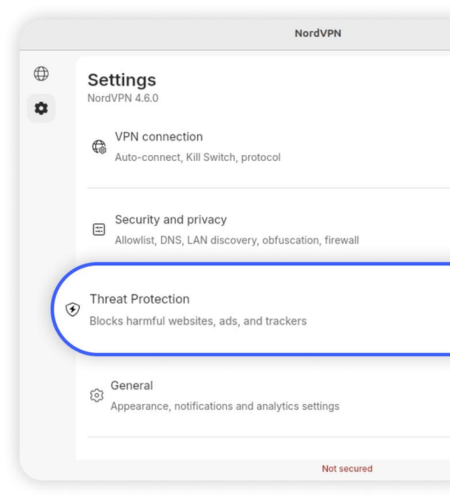
Your fifth check is the collection of additional protection features available in your NordVPN app. Depending on your subscription, device, and version, these may include tools designed to help block malicious websites, intrusive ads, trackers, or other online threats.
Review the protection settings and identify which tools are available to you. Check whether they are active, whether the app requests additional permissions, and whether any features have been paused or disabled.
These tools can complement your VPN connection, but they do not replace antivirus software where appropriate, secure passwords, multifactor authentication, or careful handling of suspicious links and downloads.
It is also worth reviewing DNS settings and other connection preferences if they are available. Understanding your configuration is more useful than enabling unfamiliar options without knowing what they do.
How NordVPN Fits Into Your Privacy Routine
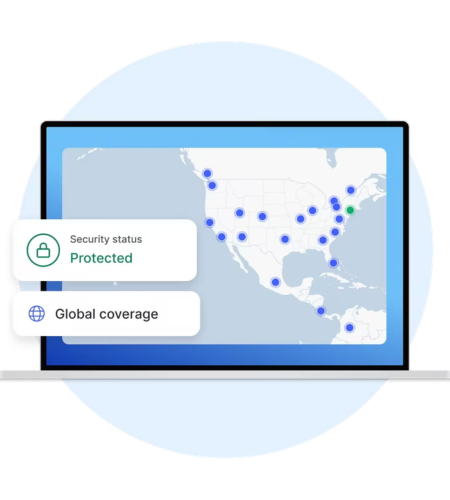
NordVPN offers VPN apps and online security features for supported devices. Visit its official website to explore plans, compatibility, and available features.
Before choosing a VPN plan, check device compatibility, supported operating systems, and included features, as availability varies by subscription and app version.
A practical privacy routine should include more than changing VPN settings. Keep your operating system and applications updated, use unique passwords, enable multifactor authentication where possible, and review the permissions granted to apps.
Pros and Cons of Reviewing These Settings
Pros
- Helps you understand how your VPN connection behaves.
- Makes automatic connections easier to manage.
- Clarifies what happens when the VPN disconnects.
- Helps you identify unnecessary split-tunneling exceptions.
- Improves awareness of available security tools.
Cons
- Some options are unavailable on certain devices.
- Strict connection controls may interrupt internet access.
- Split tunneling requires careful configuration.
- Additional protection features may vary by plan.
💥 Limited-Time Offer & Huge Discounts
Frequently Asked Questions
1. Which NordVPN settings should I check first?
Start with auto-connect and Kill Switch, then review your VPN protocol, split-tunneling exceptions, and additional protection tools. Confirm that each setting suits your device and needs.
2. Should I always keep NordVPN auto-connect enabled?
Auto-connect is useful if you frequently switch networks or use public Wi-Fi. Choose the connection conditions that suit your routine and verify that the VPN connects as expected.
3. Does a Kill Switch improve VPN privacy?
It can help prevent traffic from continuing through an unprotected connection when the VPN disconnects. However, the exact behavior depends on your device and the Kill Switch option you select.
4. Is split tunneling safe to use?
It can be useful when certain applications need a regular internet connection. However, excluded traffic bypasses the VPN tunnel, so review exclusions carefully and avoid routing sensitive activity outside the VPN unnecessarily.
5. Do all NordVPN settings work on every device?
No. Available features and configuration steps can differ across Windows, macOS, Android, iOS, Linux, and browser extensions. Check the documentation for your specific app version.
Conclusion
Reviewing these five NordVPN settings can help you make more informed choices about connection behavior and online privacy. Auto-connect helps manage when the VPN connects, Kill Switch addresses unexpected disconnections, VPN protocols control connection methods, split tunneling manages application routing, and additional protection tools provide security options beyond the VPN tunnel.
No single configuration guarantees complete privacy. Review your settings periodically, keep your software updated, and choose options that fit your actual needs. To explore supported devices, current plans, and available features, visit the official NordVPN website.