Table Of Content
- 🎉 Save More on Every Order – Grab the Latest Coupons & Deals
- Step 1: Plug the Phone Into a Power Outlet
- Step 2: Use the Parent Companion App
- Step 3: Connect Tin Can to Compatible Wi-Fi
- Step 4: Approve Contacts and Set Calling Hours
- Step 5: Choose a Calling Plan and Start Calling
- 🎉 Save More on Every Order – Grab the Latest Coupons & Deals
- Frequently Asked Questions
- Does Tin Can need a traditional landline?
- Does Tin Can work without Wi-Fi?
- Can children call regular phone numbers?
- Can parents control who calls their child?
- Is Tin Can a smartphone?
- Conclusion
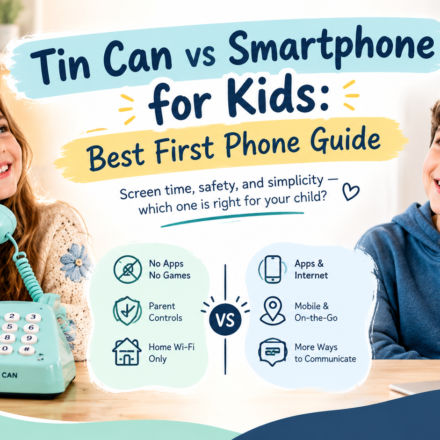
A child’s first phone does not have to be a smartphone. Some families want their children to practise calling relatives and friends independently without introducing social media, games, texting, or unrestricted internet access. A screen-free home phone can offer a simpler way to stay connected.
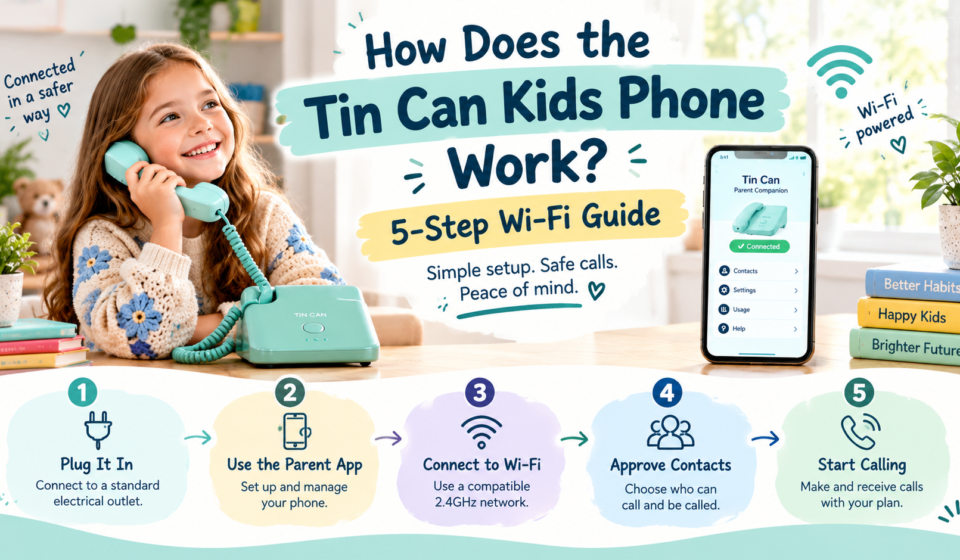
The Tin Can kids phone works through a compatible home Wi-Fi connection rather than a traditional telephone line. Parents use a companion app to configure the device, manage approved contacts, and control when calls are allowed. Once everything is set up, children can use the handset to make and receive permitted calls. Understanding how the process works can help you prepare your home, choose a suitable calling plan, and decide whether this type of phone meets your family’s needs.
🎉 Save More on Every Order – Grab the Latest Coupons & Deals
Step 1: Plug the Phone Into a Power Outlet
The first step is to choose a suitable location and connect the Tin Can phone to electricity. The device is designed for stationary home use, so a desk, family room, or dedicated area in your child’s room may be appropriate.
Unlike a traditional landline, Tin Can does not require a telephone wall jack. It uses an internet connection for calling, but the phone itself still needs electrical power.

Before setup, check that:
- A standard electrical outlet is nearby.
- The phone can sit on a stable surface.
- The location is convenient for your child to use.
- Your home Wi-Fi signal is suitable in that area.
Think about your child’s daily routine when choosing the location. A shared family space may make it easier to supervise early calls, while a dedicated spot can give your child a consistent place to speak with approved contacts.
Step 2: Use the Parent Companion App
The next step is to configure the phone through the Tin Can companion app. This app is intended for parents and caregivers, who use it to set up and manage the device.
During setup, follow the current instructions provided with the product. You may need to create or access an account and connect the phone to your home network.

The app also provides access to management features, including contact approval, calling hours, and call logs. These settings help parents decide how the phone fits into their household routine.
Before you begin, check that your smartphone is compatible with the companion app and that you can access your home network settings if needed. Completing the setup carefully can help prevent avoidable connection or configuration problems.
Step 3: Connect Tin Can to Compatible Wi-Fi
Tin Can uses your home’s 2.4 GHz Wi-Fi network to make calls. It does not need a traditional phone line, but it does rely on a suitable internet connection and electrical power.
Check your router before purchasing or installing the device. Some routers combine network bands under one network name, so you may need to review the router settings or manufacturer instructions to confirm that a compatible 2.4 GHz connection is available.
A few practical checks can help:
- Confirm that your home network supports 2.4 GHz Wi-Fi.
- Place the phone where the wireless signal is reliable.
- Follow the app’s instructions to connect the device.
- Test the connection before your child begins using it regularly.
If the phone is placed in a room with weak Wi-Fi coverage, calls may be affected by the connection. Improving network coverage may help, although the result depends on your home’s layout and equipment.
Remember that a Wi-Fi phone is not the same as a cellular phone. Tin Can is designed for home-based communication rather than carrying around for calls while travelling.
Step 4: Approve Contacts and Set Calling Hours
Once the phone is connected, parents can manage who is allowed to communicate with it. Tin Can uses an approved-contact system through its companion app, so families can choose which people are permitted to call in and out.
You might start with parents, grandparents, close relatives, or trusted caregivers. Talk with your child about the contact list and explain what to do if they receive an unexpected call or need help.
The app also supports calling-hour controls. These allow parents to schedule when the phone is available, helping prevent calls from interrupting bedtime, homework, or family routines.
Tin Can’s product information also lists features such as speed dial, voicemail, speakerphone, and call logs. Available settings and their operation should be checked in the current product instructions.
Parental controls can help establish boundaries, but they do not replace teaching children sensible communication habits. Explain when it is appropriate to answer, how to speak respectfully, and when to ask an adult for assistance.
Step 5: Choose a Calling Plan and Start Calling
Tin Can offers free calls between Tin Can devices. Calling approved regular phone numbers requires the paid Party Line plan, according to the official product page.
The listed price is $9.99 per month, with the first month free according to the product information. Prices and plan terms can change, so confirm the latest details before subscribing.

Before choosing a plan, consider:
- Whether your child’s friends or relatives also have Tin Can devices.
- Whether your child needs to call ordinary mobile or landline numbers.
- Which numbers you want to approve.
- The recurring cost of the plan that meets your needs.
Once your chosen calling arrangement is active, make a test call to a permitted contact. Show your child how to use the handset and any relevant buttons, and explain how to end a call. If emergency calling is enabled, review the setup instructions and do not rely on the device as the only way to contact emergency services during power or internet outages.
🎉 Save More on Every Order – Grab the Latest Coupons & Deals
Frequently Asked Questions
Does Tin Can need a traditional landline?
No. The Wi-Fi model uses a compatible home internet connection and a standard electrical outlet. It does not require a telephone wall jack.
Does Tin Can work without Wi-Fi?
No. The Wi-Fi model requires a compatible 2.4 GHz network for its normal calling service. It is not a cellular phone.
Can children call regular phone numbers?
Yes, with the applicable Party Line plan and approved contacts. Calls between Tin Can devices are available without a subscription, subject to the service terms.
Can parents control who calls their child?
Parents can manage approved contacts through the companion app and set calling hours. Check the current product instructions for the available settings.
Is Tin Can a smartphone?
No. It is a screen-free home phone designed for voice calls, without apps, texting, or games.
Conclusion
The Tin Can kids phone works through five main steps: connect it to power, configure the companion app, connect to compatible Wi-Fi, approve contacts, and choose the right calling arrangement. Once configured, it provides a dedicated way for children to make and receive permitted calls at home.
Before deciding, check your Wi-Fi setup, the calling plan your family needs, and whether a stationary phone suits your child’s routine. If this screen-free approach matches your goals, explore the current features and requirements on the official Tin Can store page.